MEDIALecture Web
Written By Robert Thomas
Last updated 9 months ago
This article describes how to use the MEDIALecture Web recording feature.
Using MEDIALecture Web
To begin a new recording using MEDIALecture Web, log into MEDIAL and click on the record button at the top of the screen.

Note: To launch MEDIALecture Web in an LMS, click on the Record Icon.
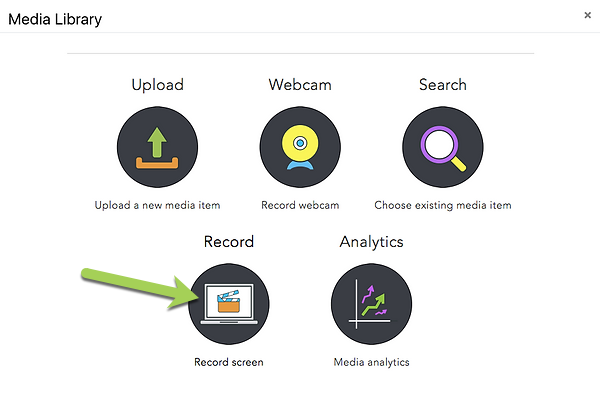
A window will appear presenting a choice between the new MEDIALecture Web version, or the old MEDIALecture client (Installed Version). Select Web Version.
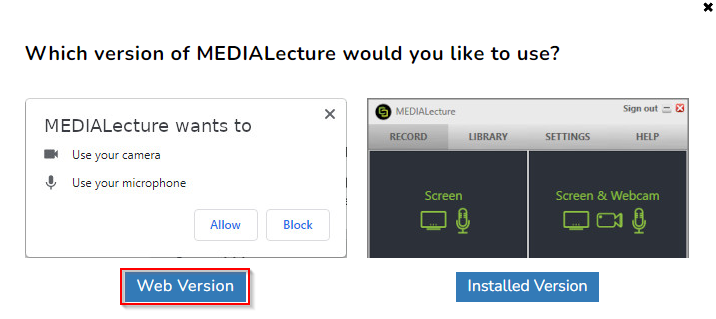
Note: Your browser may show a message asking if you want to allow MEDIALecture access to your camera and microphone. Click Allow in order for it to be able to access them for the recording.
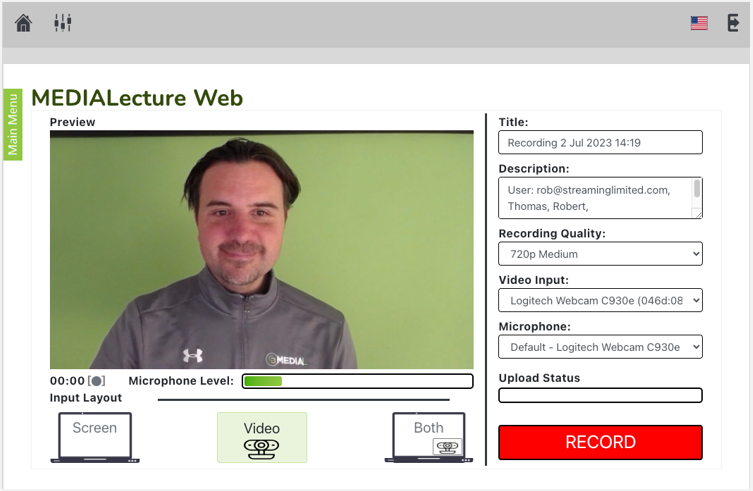
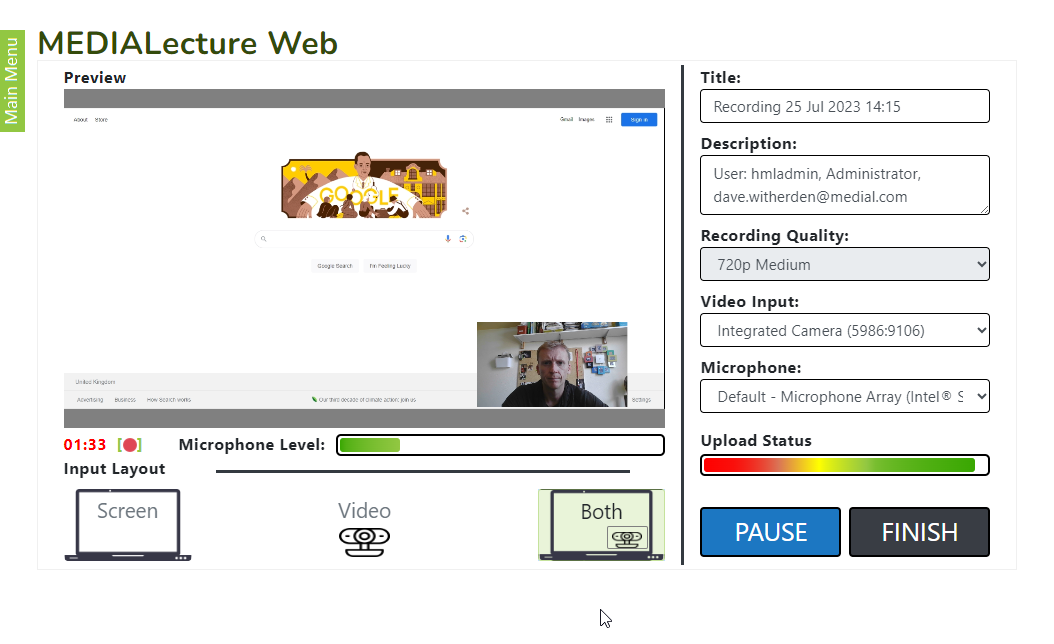
When the web version is launched the recording area will open. By default, Video is selected, which will record the video input from your connected camera.
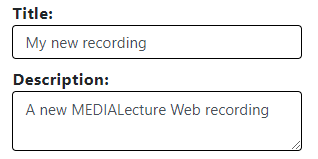
By default there is a title and description set for the recording. These can be changed by clicking in the boxes and entering in your own text.
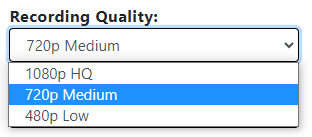
The default recording quality is set to 720p Medium. This should be acceptable for most recordings, however it can be changed using the Recording Quality drop-down box and set to either 1080p High, or 480p Low.
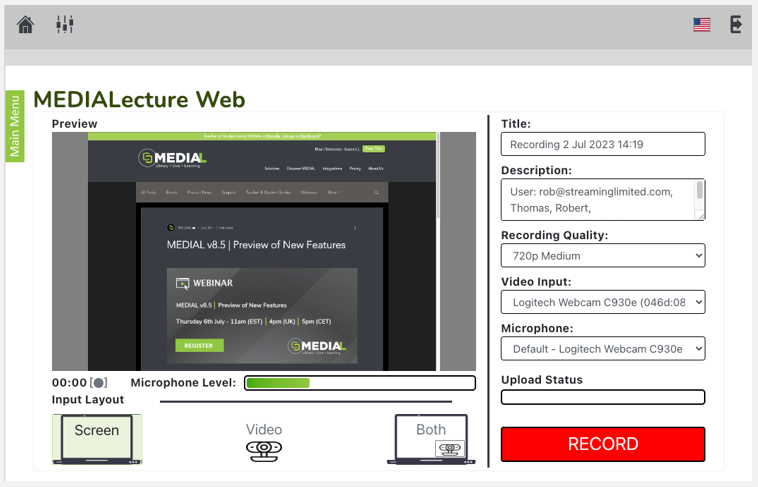
Click on Screen underneath the video preview to change it to just record the screen.
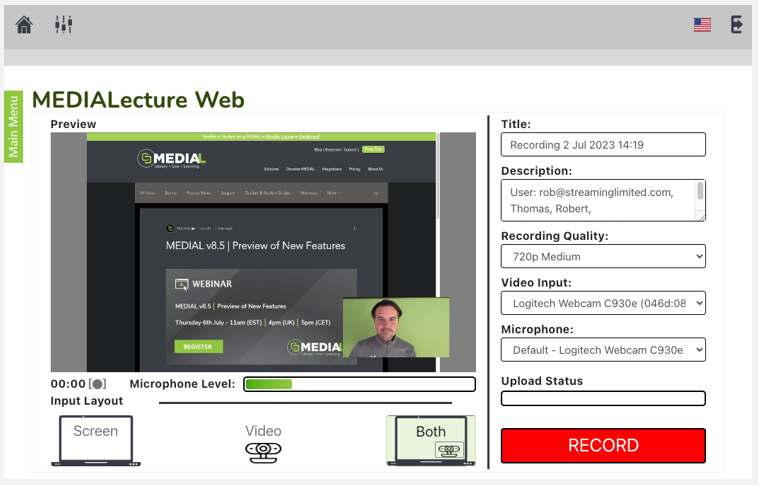
Or, click on Both to change the recording so it captures your screen and video input from the camera.
When sharing your screen, there are three options that can be chosen from. You can choose to either share just a browser tab, a window, or an entire screen.
Tab:
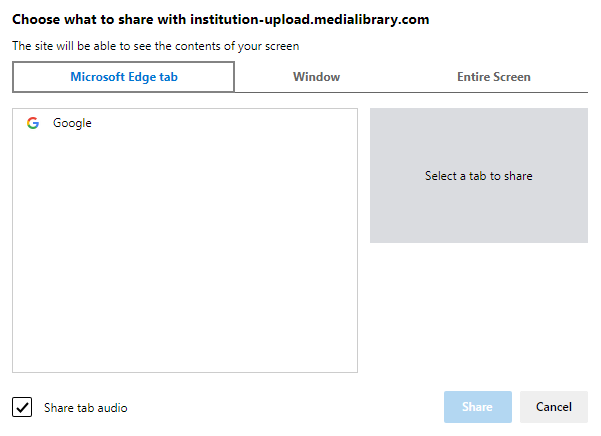
Note: When selecting tab, check the 'Share tab audio' box if you would like audio from the browser tab to be captured in the recording.
Window:
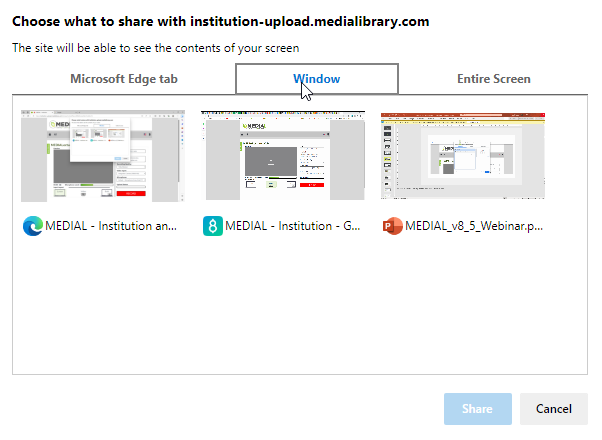
Entire Screen:
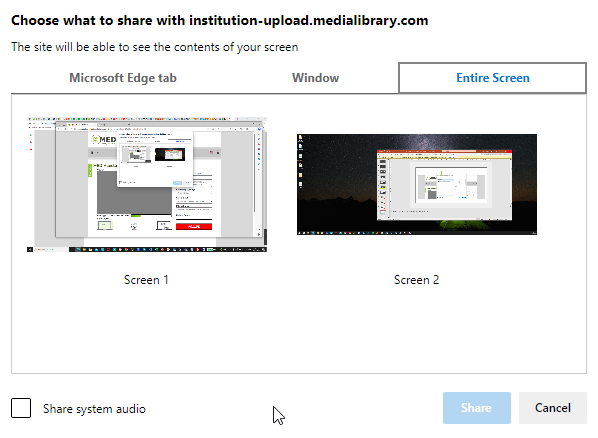
Note: When selecting Entire Screen, check the 'Share system audio' box if you would like system audio to be captured in the recording.
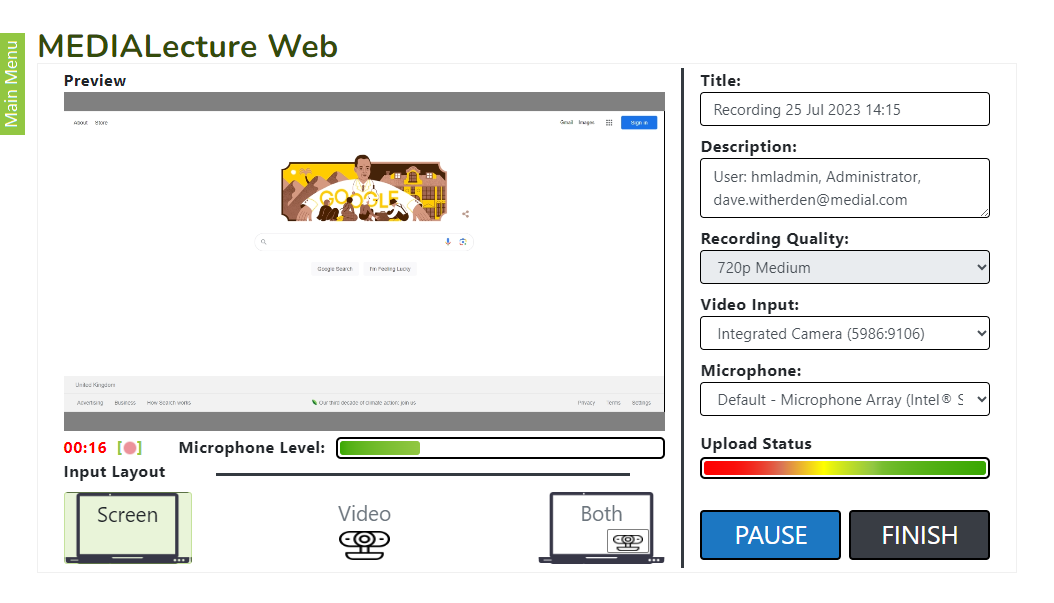
Click on Record to begin the recording.
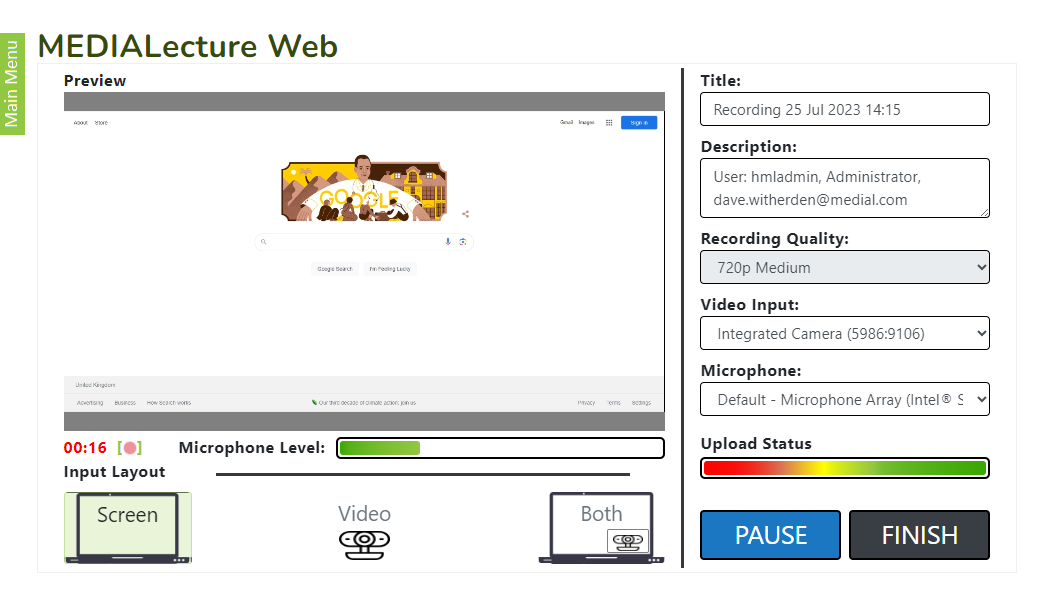
The recording can be paused by clicking PAUSE. To resume the recording, click RESUME.
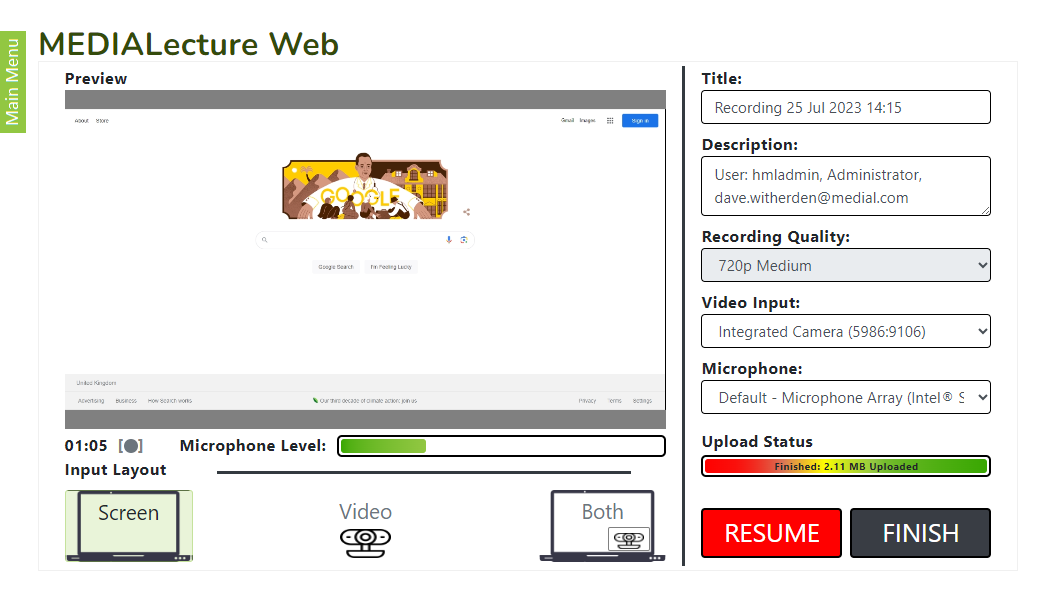
The layout of the recording can be changed mid-recording if desired. You can change from recording just your screen, for example, to either just video capture from the camera device, or both screen and video capture.
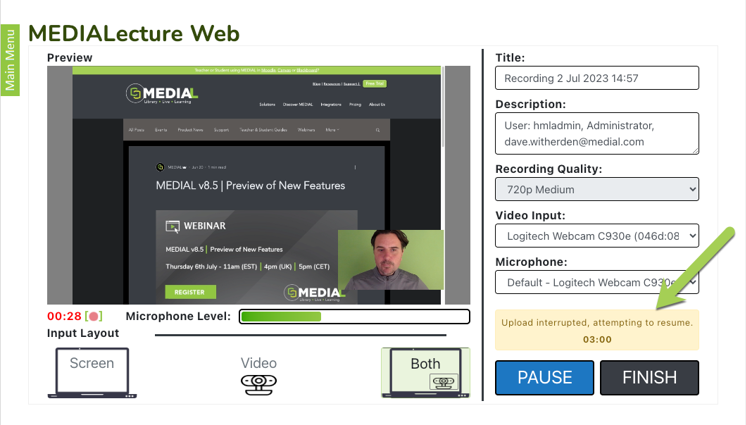
If there is a drop in Internet connection during the recording, a message will be shown stating this, and it will try and resume the recording within the time limit set by the administrator. The time is shown and will count down until the Internet connection comes back up, or it reaches zero and times out.
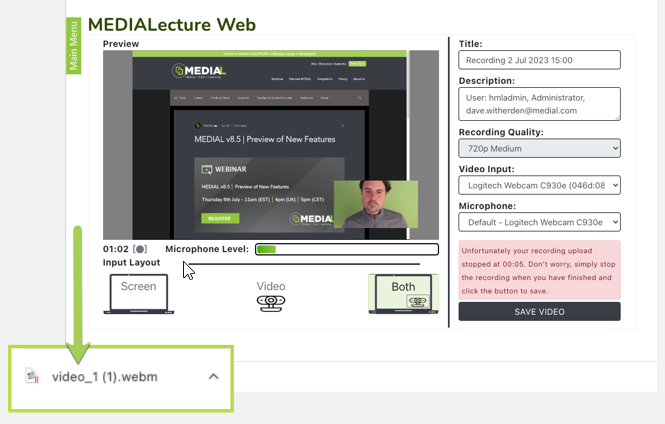
If the Internet connection becomes available again the recording will resume. If the Internet connection doesn't become available again within the time limit, another message will be displayed in red.
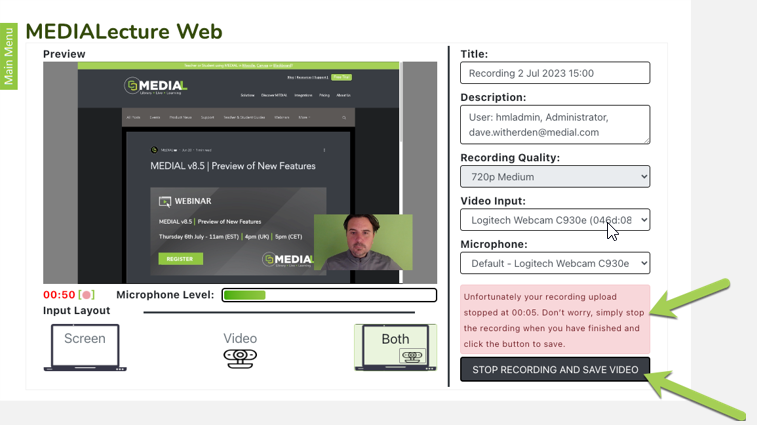
The recording can still be continued, and will be stored so you can download it once the recording is complete. When you are ready to finish recording, click on STOP RECORDING AND SAVE VIDEO.
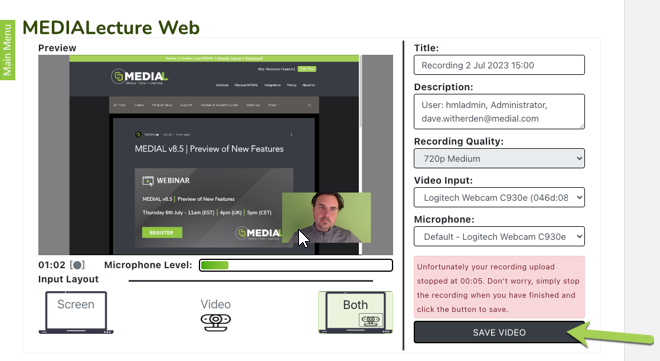
Click on SAVE VIDEO. This will download a .webm file that can be uploaded to MEDIAL manually once your Internet connection has returned.
If the recording is ready and there have been no Internet connectivity problems, click on FINISH. Your recording will be uploaded into MEDIAL automatically.
MEDIALecture Web Settings
In the MEDIAL admin area there is a MEDIALecture menu icon where the settings can be accessed.
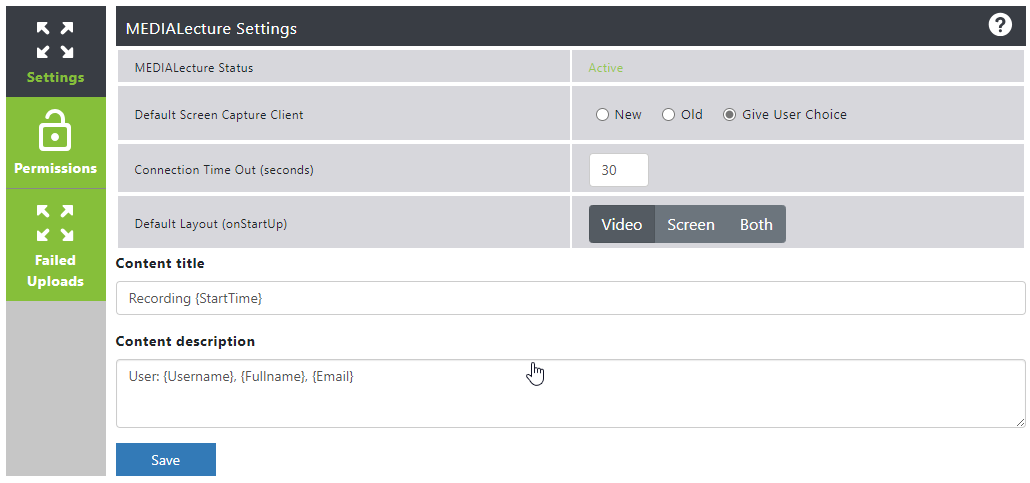
The Settings area shows the general settings for MEDIALecture. The following options can be set:
Default Screen Capture Client: This can be set to 'New' (MEDIALecture Web version), 'Old' (MEDIALecture installed client) or 'Give User Choice' (presents a choice so the user can decide which method they want to use)
Connection Time Out (seconds): This value is the timeout given in seconds that MEDIALecture Web will wait if the Internet connection drops for a user while they are making their recording.
Default Layout (onStartUp): The default option that is set for users when they start MEDIALecture Web. It can be set to either Video, Screen or Both.
Content title: A default title that will appear for all recordings. {StartTime} is a valid variable and is set by default, but can be removed.
Content Description: A default content description for recordings. {username}, {fullname} and {email} are valid variables for this field and are present by default, but can be deleted.
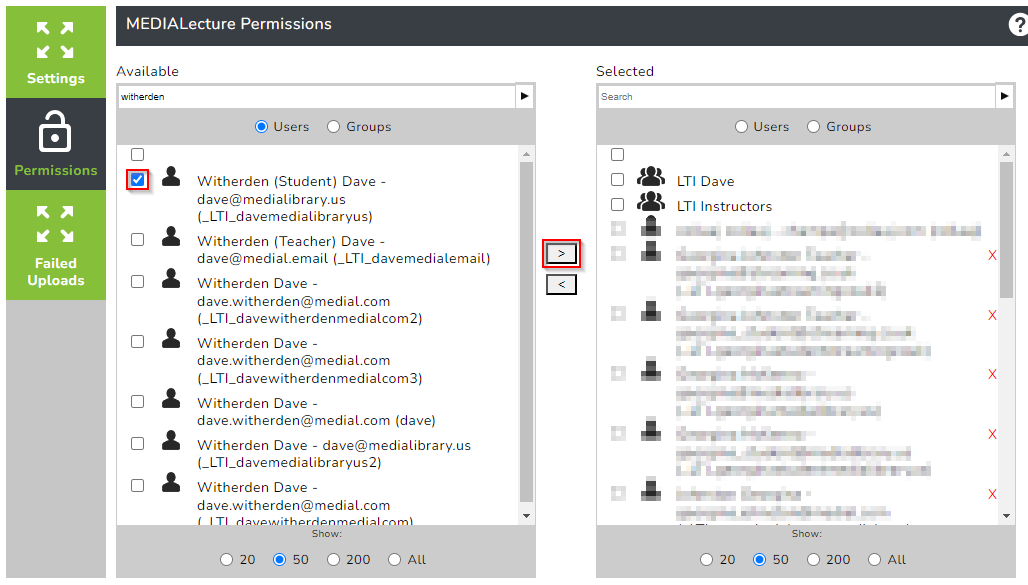
The Permissions menu allows access to MEDIALecture Web to be given to users and/or groups. Users and groups can be searched for in the left-hand side window, then selected, and moved over to the right-hand side window to provide them access to use it.
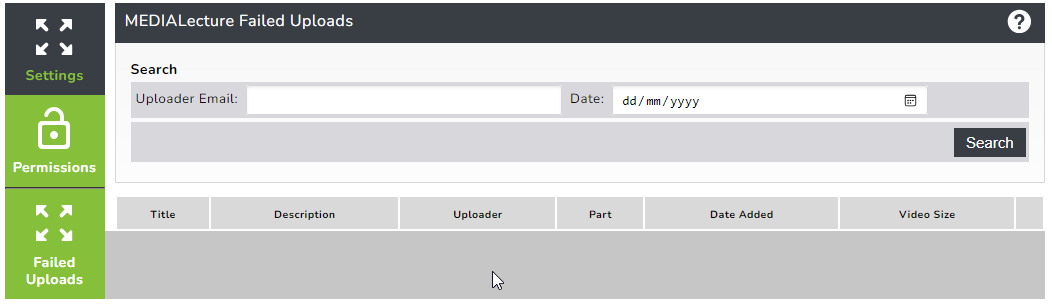
The Failed Uploads menu shows an administrator any uploads that may have failed. It allows for the recordings to be placed into a category of the administrator's choosing, or they can be deleted if they are not needed.
Was this helpful?
Still need help? Ask the team