Administration

Written By Robert Thomas

Last updated 3 months ago

If you are a MEDIAL administrator, you can configure the library settings and features by clicking the sliders icon in the top menu bar after you have logged in.

Within any of the menus, you can access the main menu again by clicking the sliders icon.

Administration Topics

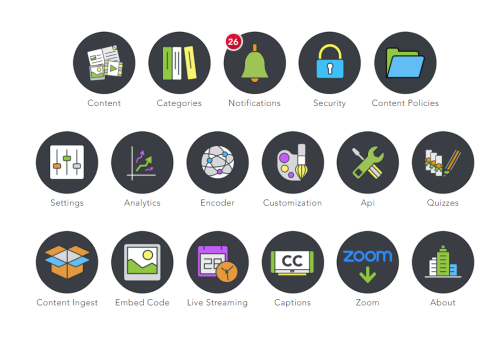
Content

Search for and manage uploaded content.

Categories

Create the categories where users upload content.

Notifications

Review flagged content and comments as well as check disk space.

Security

Control user access to the media library.

Settings

Modify the basic settings for MEDIAL.

Content Policies

Create retention policies to manage content in MEDIAL and perform bulk archive and delete actions.

Analytics

View graphs of site use.

Encoder

Adjust the encoding settings for the uploaded media.

Customization

Modify the look and operation of MEDIAL.

API

Set IP addresses for tools that integrate with MEDIAL.

Quizzes

Create and manage video quizzes

Content Ingest

Enable bulk media loading and set up Camtasia integration.

Embed Code

Change the code used to embed media in other products and sites.

Live Streaming

Set up channels for live broadcasts

Captions

Closed Captions Settings

Zoom

Configure and manage Zoom integration

Live Playback Troubleshooting

Resolve issues with live stream playback.

Navigation Elements

Use the following elements to navigate the administration site.

Main Menu

The main menu displays the administration functions.
Menu Side Button

Within any of the menus, you can access the main menu by clicking the green menu button.

Accordion Sections

Settings for different areas are presented in accordion-type sections that you can open and close by clicking.
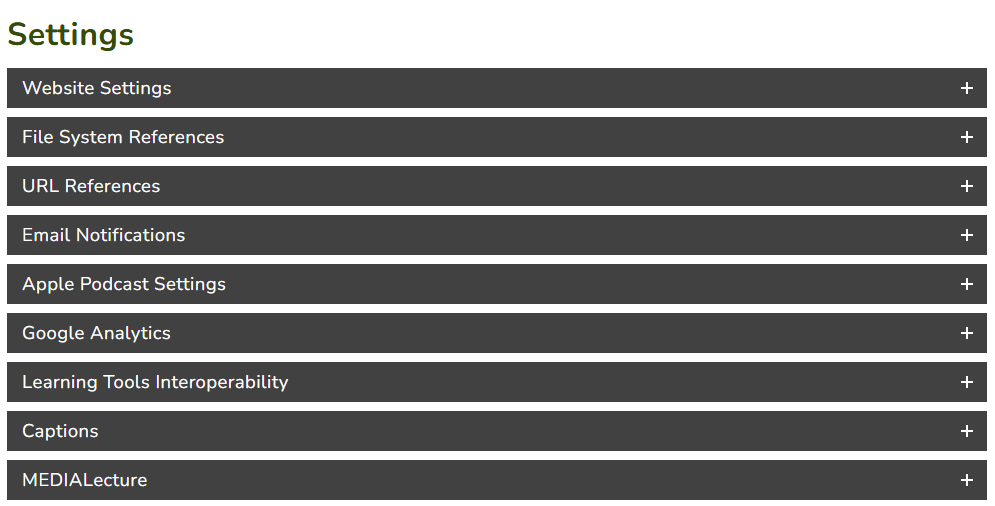
After changing settings, scroll to the bottom of the page and click Save.