Quizzes
Written By David Witherden
Last updated 8 months ago
The Quizzes area allows quizzes to be added to videos for students to be able to take when viewing the video either in MEDIAL or via an LMS.
To access quizzes, click on the Quizzes menu icon on the administration site in MEDIAL.
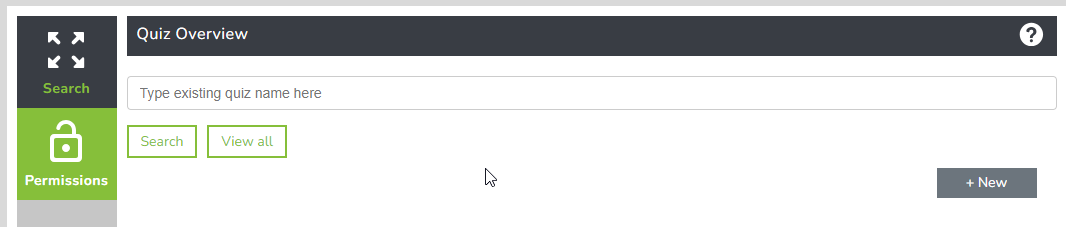
The Quizzes screen will appear and it will open on the Search page. This allows existing quizzes to be searched for and new ones to be added. There is also a Permissions menu, and this is discussed further on in this article.
On the Quiz Overview page, a list of all quizzes that have been created is shown.
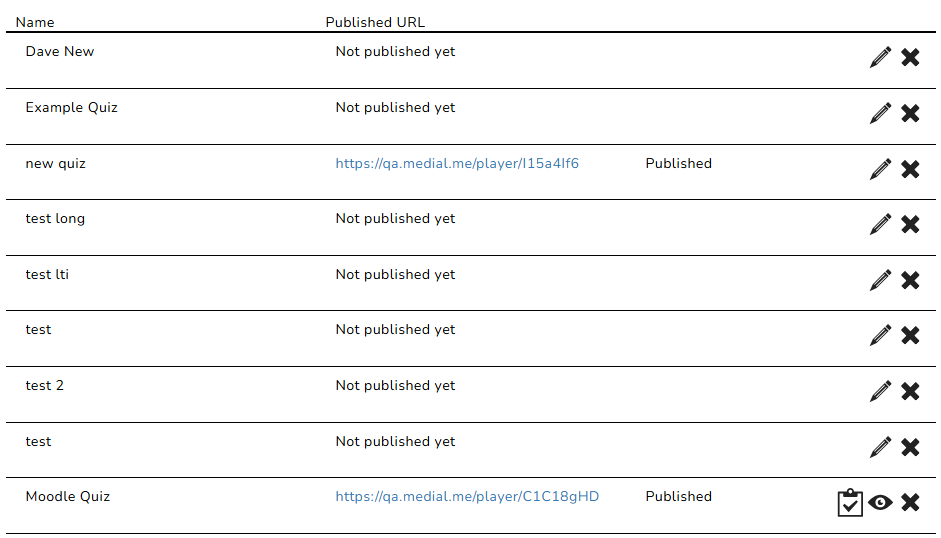
The name of the quiz is displayed, along with whether or not it is published. If the quiz has been published, a link is displayed which can be clicked to navigate to the quiz, or can be shared.
There is a pencil icon which can be clicked in order to edit a quiz, and the 'X' icon next to it can be clicked in order to delete a quiz.

Note: If a quiz has been published but no one has taken it yet, it can still be edited. If, however, one or more people has taken the quiz and submitted answers, it can no longer be edited.
Once a quiz has been taken by participants, the pencil icon to edit is replaced by 'grades' and 'view' icons.

Clicking on the 'view' (eye) icon will allow you to view the settings for a quiz, but not change any of them.
Clicking on the check mark (grades) icon allows you to view participants answers and their grades.
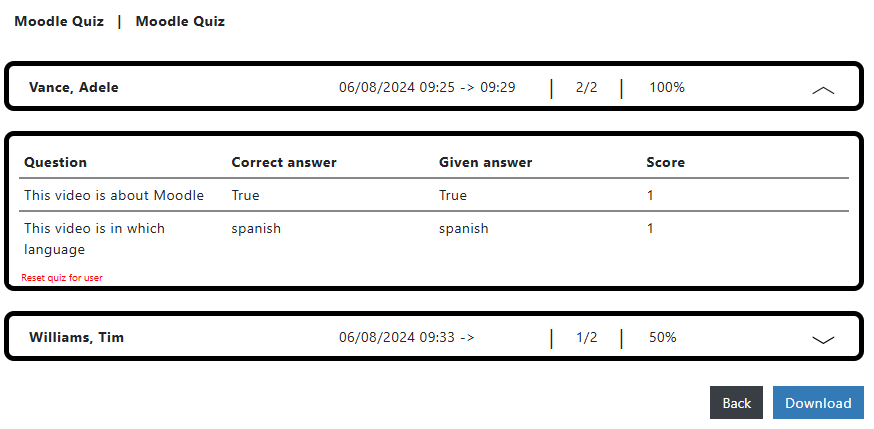
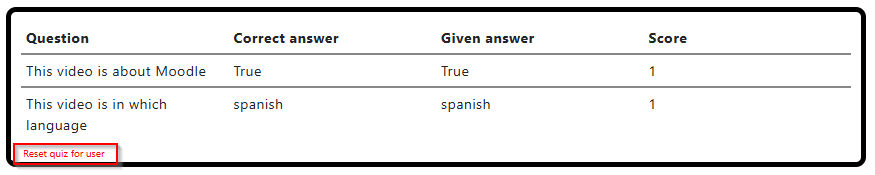
Clicking the arrow at the far-right of the row for each user will show how a user has answered each question in the quiz.

There is an option to reset a quiz for a user. Click on 'Reset quiz for user' in order to clear their results and allow them to take the quiz again.
Click on Back to go back to the main Quiz Overview area, or Download to download all the results for all participants in a CSV file, which is downloaded in a zip.
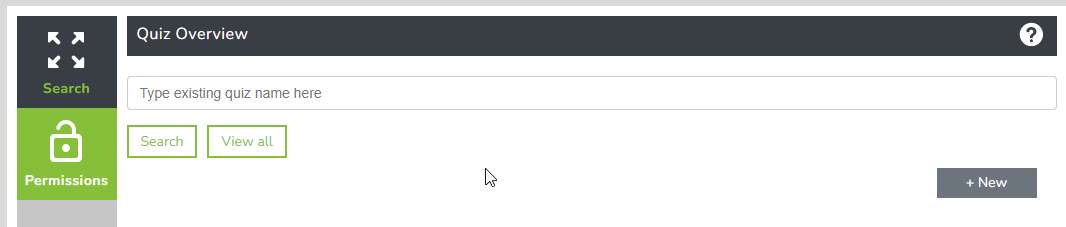
On the Quiz Overview screen, enter in a search term to find an existing quiz. To add a new quiz click on New.
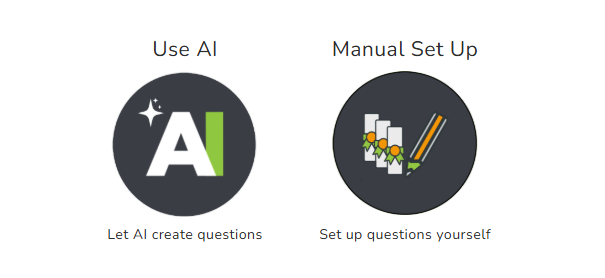
Choose either Use AI, or Manual Setup. The AI method is discussed further on in this guide.
Manual Setup
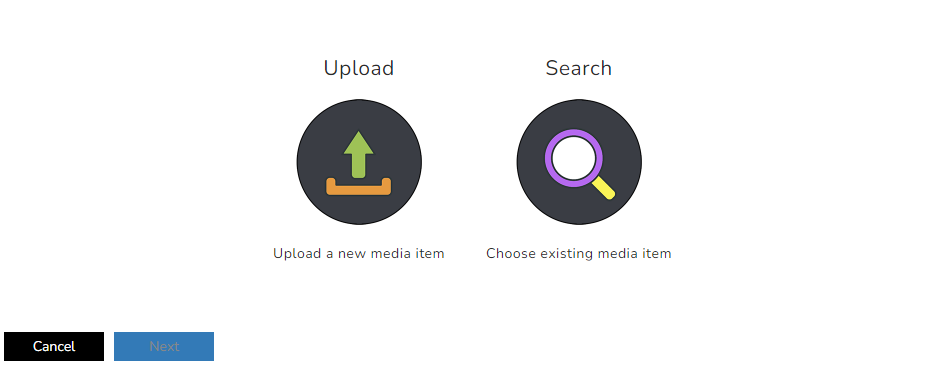
Here, either a new clip can be uploaded, or an existing clip can be searched for and added. Click on Upload to upload a new clip and follow the upload wizard, or Search to find a clip that is already in MEDIAL and add it.
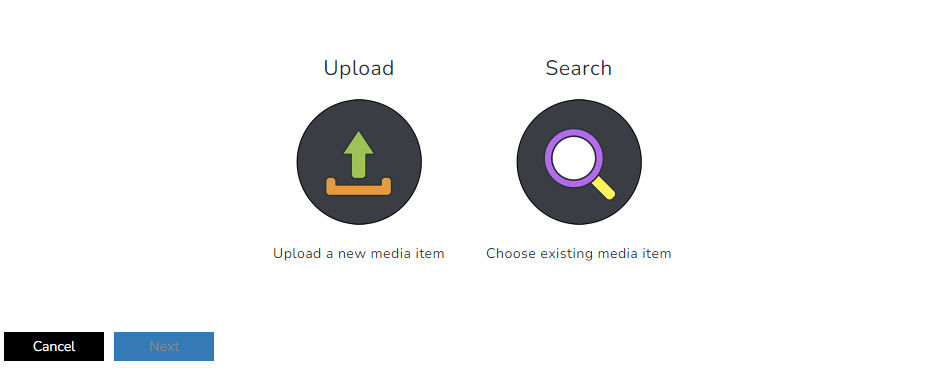
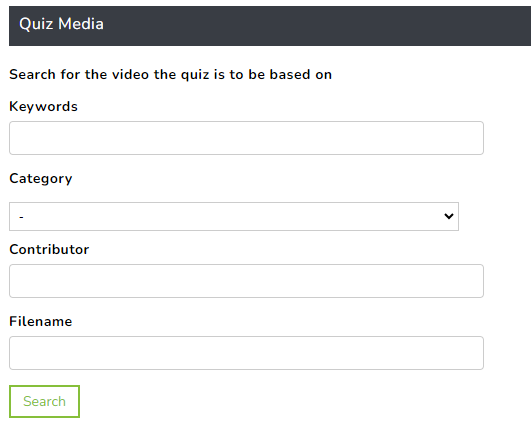
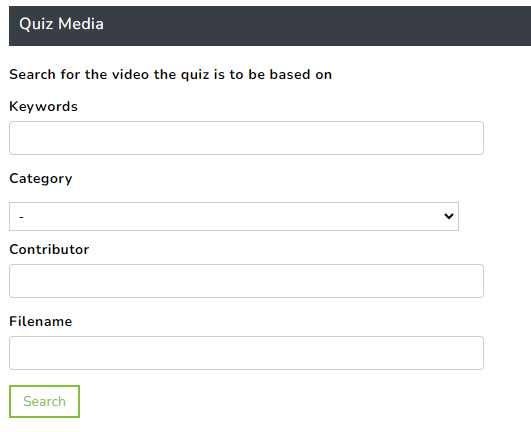
When searching, enter the search terms and click Search. Any or a combination of fields can be used.
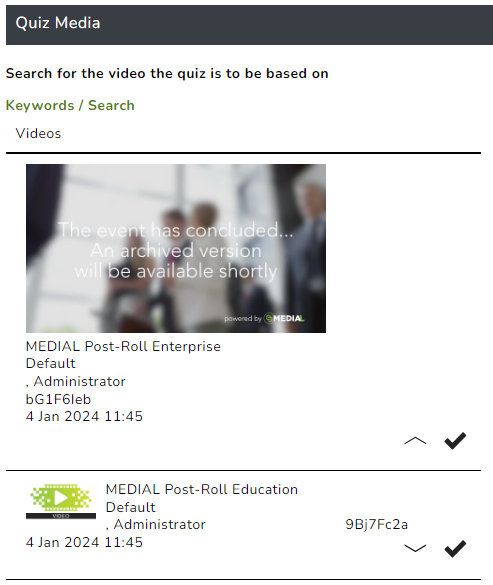
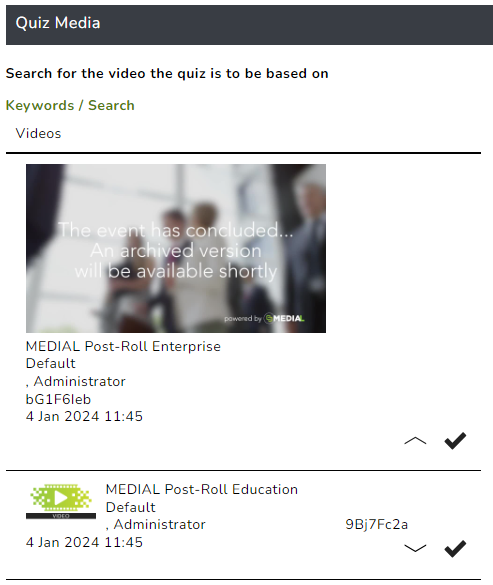
When results are returned, click the down arrow in order to see more information about the clip if required. Click on the check mark in order to select it.
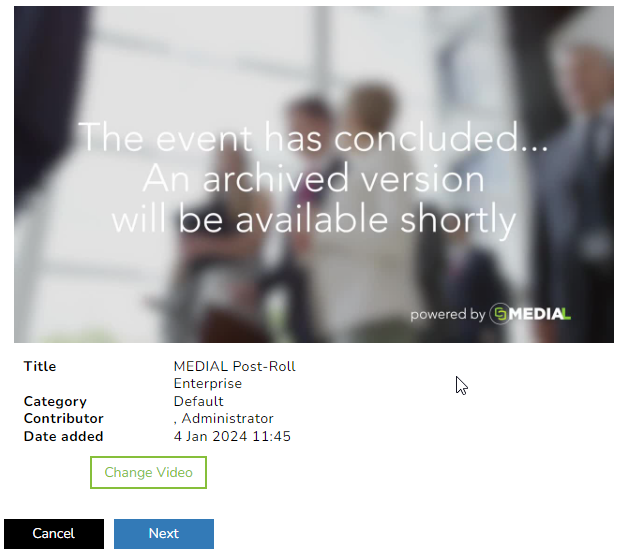
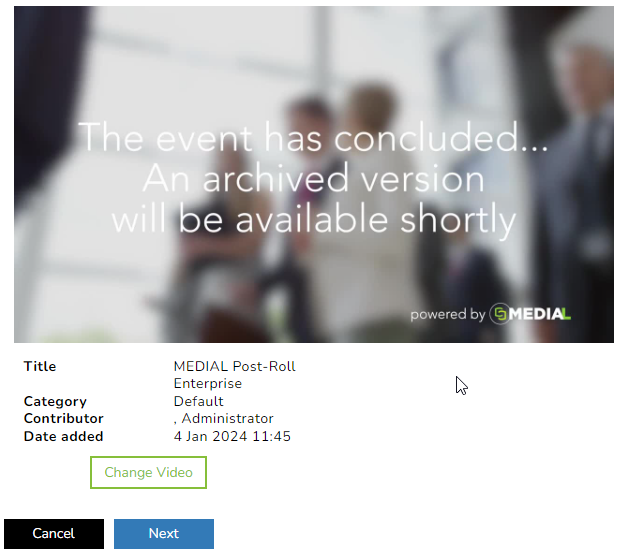
Click on Next to proceed, or to change the video if required click on Change Video.
Enter in a name for the quiz and a welcome message that users will see when they first start the quiz.
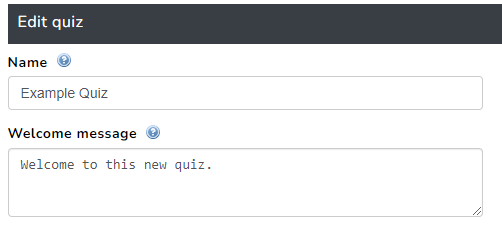
The following options can be set on this screen:
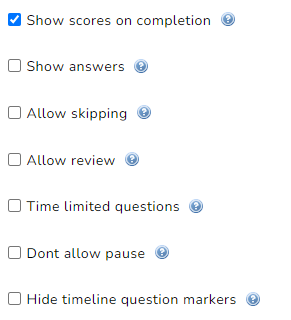
The following is an overview of the options and what they do:
Show scores on completion - This shows the result of the quiz to the user at the end if checked. If left unchecked the user will not see their score at the end of the quiz
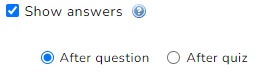
Show answers - When this is checked the person taking the quiz will see the correct answers once they have submitted their own. This can be configured as shown below, as two additional options are displayed. Click on 'After question' to show the user the correct answer after each question, or 'After quiz' to show the correct answers after the quiz is complete.
Allow skipping - Enable this if a user should be allowed to skip answering a question. If it is not enabled then a user will be forced to submit an answer before proceeding to the next question.
Allow review - At the end of the quiz enabling this option will allow the participant to change their answers before they submit. If skipping has been allowed this will enable a user to add an answer during the review.
Time limited questions - Enabling this option allows countdown timers to be set for questions. This means that a user only has a certain amount of time to answer before they are timed out. This option is not available when 'Allow review' is checked.
Don't allow pause - Checking this option means the video can't be paused when taking the quiz.
Hide timeline question markers - Questions are marked with a 'Q' on the videos timeline. When this is enabled, these will be removed from the timeline so participants can't see at which points in the video the questions will appear.
On the next screen a walkthrough is displayed to provide guidance through the process of creating the quiz for the video. This can be closed by clicking Skip. For first time use, follow the walkthrough for guidance on how to operate the quiz controls. Click on each highlighted area to advance through the walkthrough.
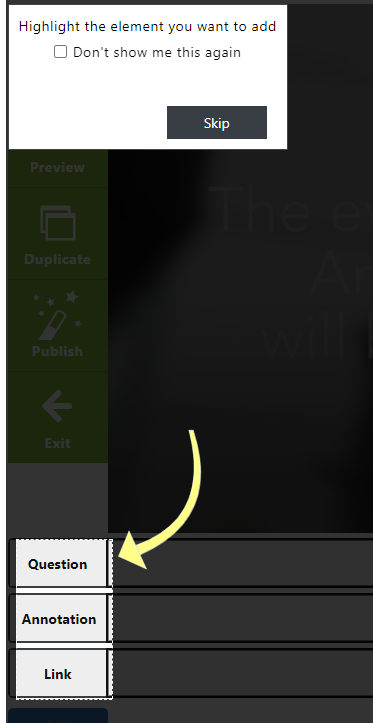
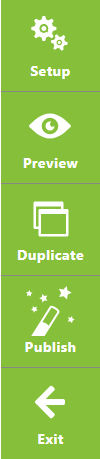
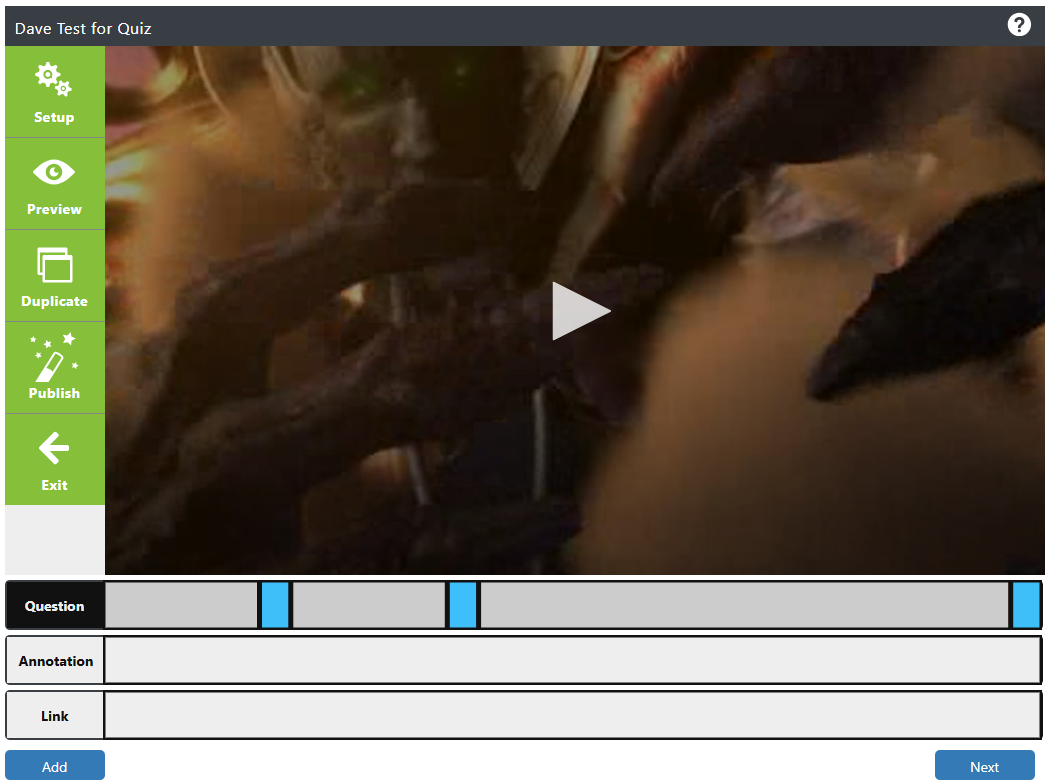
A side menu bar is displayed with the following options:
Setup - The current window
Preview - Preview how the quiz will look when a participant takes it
Duplicate - Create a duplicate of the quiz. Clicking this will ask you to provide a name for the new quiz, and take you back to the 'Edit quiz' screen where options can be set for the new, duplicate quiz
Publish - Publish the clip, making it live and accessible to participants
Exit - Exit to the main menu
There are three types of elements that can be added to a quiz: questions, annotations or links.

Question
Before adding a question, ensure the timeline is set correctly. Either play the video and pause it at the point you would like the question to appear, or click in the grey bars, in any empty space, below the video to move the timeline to that point. The red bar indicates the current position in the video.

To add a question click on Question and click Add.
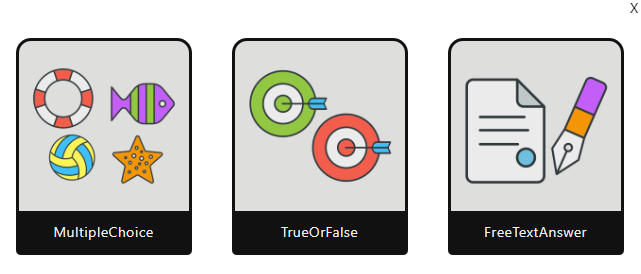
A window will appear over the video player, with three options: Multiple Choice, True or False and Free Text Answer.
Multiple Choice
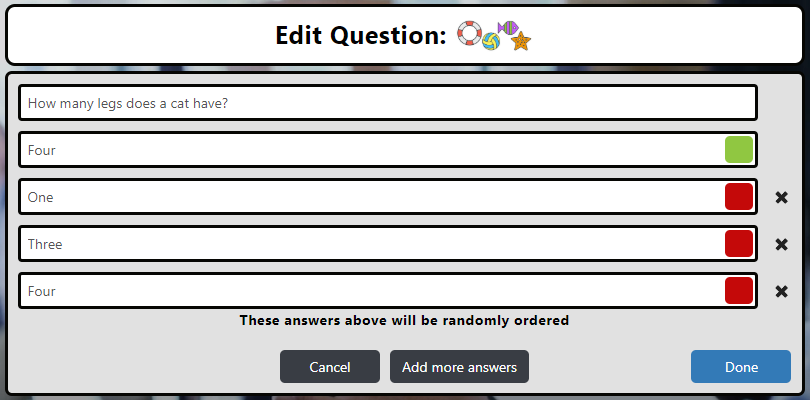
When selecting multiple choice a question can be entered, and below it, the correct answer. Three answers can be entered in for the participant to select from. Clicking Add more answers shows one more line, allowing a fourth answer to be entered for the participant to choose from. Click Cancel to cancel creating the question, or Done to add it to the video.
True of False
Enter in the question. Choose whether the correct answer to the question is either true or false and then click Done.
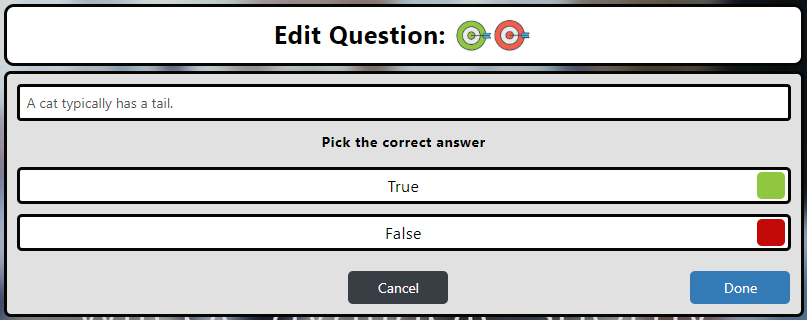
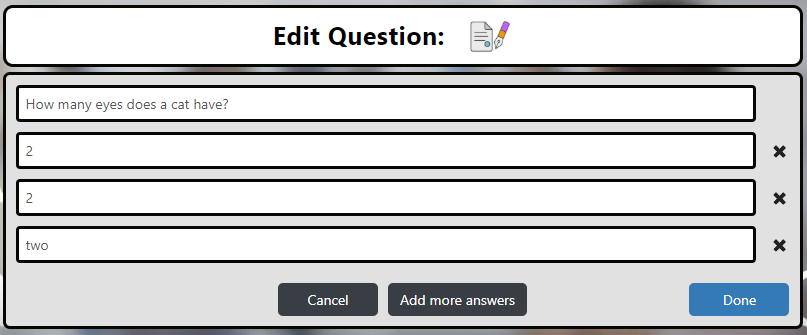
Free Text Answer
Enter in the question followed by the correct answer. Below, enter in the answers that would be accepted as correct. If more answers are required, click on Add more answers. Up to four acceptable answer variations can be added. Click Done to add the question to the video.
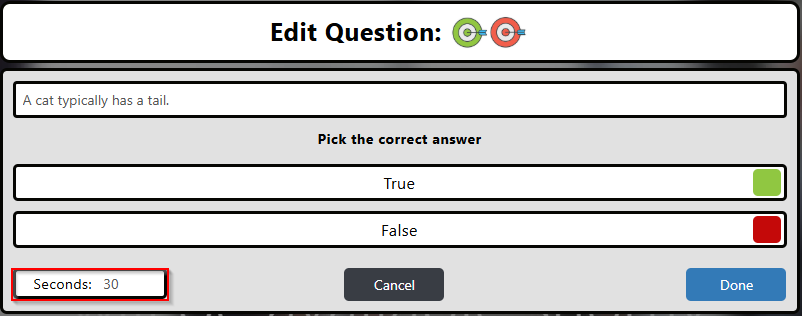
When the time limited questions option is enabled, the number of seconds a user has to submit their answer is displayed. This can be edited, and the default time is set at 30 seconds.
Annotation
Before adding an annotation, ensure the timeline is set correctly. Either play the video and pause it at the point you would like the annotation to appear, or click in the grey bars, in any empty space, below the video to move the timeline to that point. The red bar indicates the current position in the video.

To add an annotation click Annotation and then click Add.
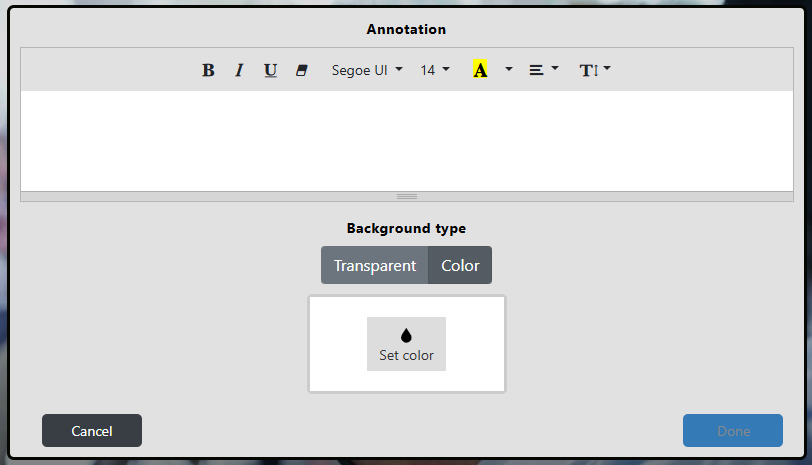
A window will appear allowing for free text to be written. This will appear over the video at the time previously selected in the timeline. Basic formatting options can be selected, and the annotation can either appear in a transparent text box on the video, or with a background colour of your choice.
Link
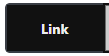
This allows a clickable hyperlink to be added onto a video for a user to click to access an external page. Before adding a link, ensure the timeline is set correctly. Either play the video and pause it at the point you would like the link to appear, or click in the grey bars, in any empty space, below the video to move the timeline to that point. The red bar indicates the current position in the video.

To add link click Link and then click Add.
The link can be given a title and the URL for it can be entered. The title is what the user sees when it appears during playback, and is what they click on to visit the link. Basic formatting for the title can be set, and the box in which it appears can either be transparent, or a colour can be set for the background.
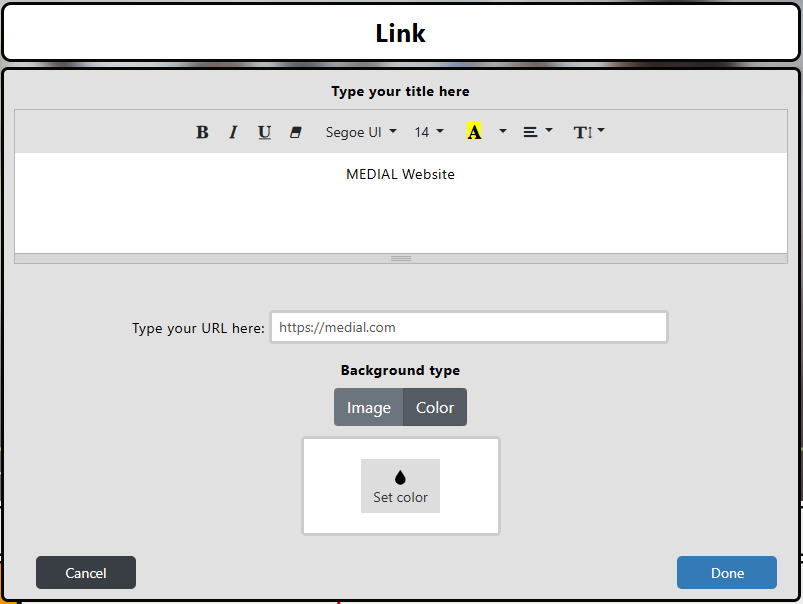
Click on Done to add the link.
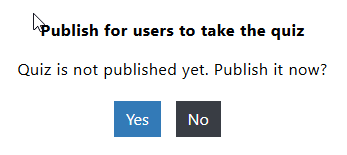
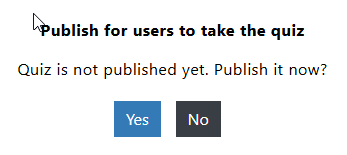
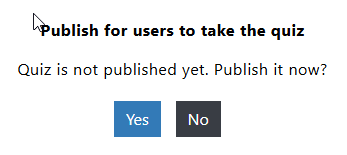
Once the quiz is ready, click on Next. A prompt will be displayed asking whether it should be published. Click Yes to publish it immediately, making it available to users, or No to save it so that it can be published at a later date.
AI Method
Click on Upload to upload a new clip and follow the upload wizard, or Search to find a clip that is already in MEDIAL and add it.
When searching, enter the search terms and click Search. Any or a combination of fields can be used.
When results are returned, click the down arrow in order to see more information about the clip if required. Click on the check mark in order to select it.
Click on Next to proceed, or to change the video if required click on Change Video.
Enter in a name for the quiz and a welcome message that users will see when they first start the quiz.
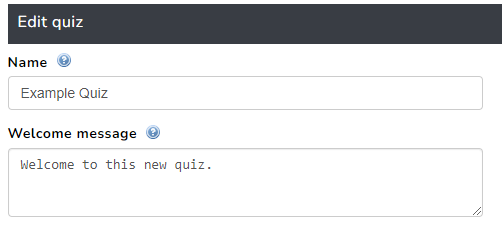
The following options can be set on this screen:
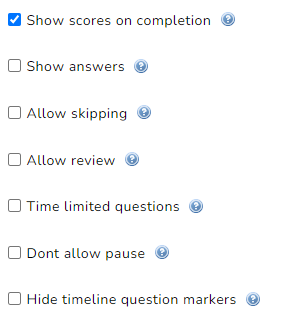
The following is an overview of the options and what they do:
Show scores on completion - This shows the result of the quiz to the user at the end if checked. If left unchecked the user will not see their score at the end of the quiz
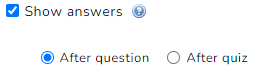
Show answers - When this is checked the person taking the quiz will see the correct answers once they have submitted their own. This can be configured as shown below, as two additional options are displayed. Click on 'After question' to show the user the correct answer after each question, or 'After quiz' to show the correct answers after the quiz is complete.
Allow skipping - Enable this if a user should be allowed to skip answering a question. If it is not enabled then a user will be forced to submit an answer before proceeding to the next question.
Allow review - At the end of the quiz enabling this option will allow the participant to change their answers before they submit. If skipping has been allowed this will enable a user to add an answer during the review.
Time limited questions - Enabling this option allows countdown timers to be set for questions. This means that a user only has a certain amount of time to answer before they are timed out. This option is not available when 'Allow review' is checked.
Don't allow pause - Checking this option means the video can't be paused when taking the quiz.
Hide timeline question markers - Questions are marked with a 'Q' on the videos timeline. When this is enabled, these will be removed from the timeline so participants can't see at which points in the video the questions will appear.
Click Next.
At this point, it will proceed to the next screen if the video already has captions. If the video does not have captions, a prompt will be displayed asking if you would like to send the video for captioning.
Note: A video must have captions in order to create AI quiz questions.
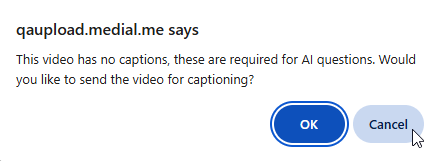
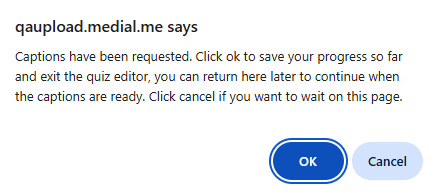
Clicking OK will show a confirmation window. Clicking OK will take you back to the main Quizzes and your quiz will be saved. Clicking cancel will return you to the Edit quiz window.
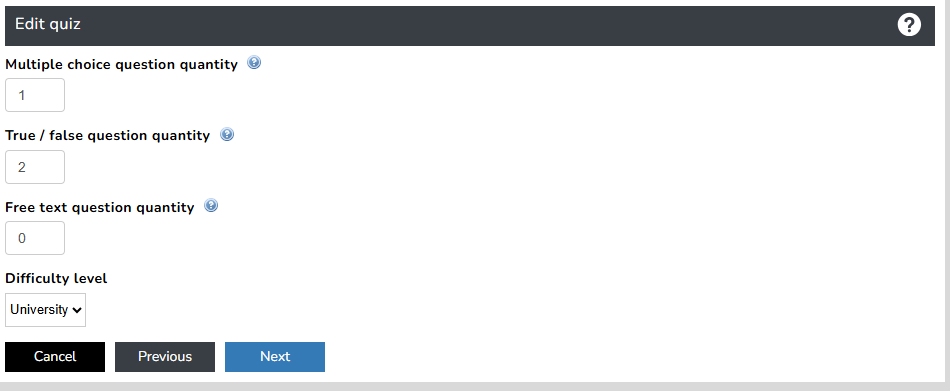
Once a video has been captioned, you can proceed to the next step. The number of multiple choice, true/false and free text questions can be set, and the difficulty level can be set to either University, GCSE or Key Stage 3. Once these have been set to the desired levels, click Next.
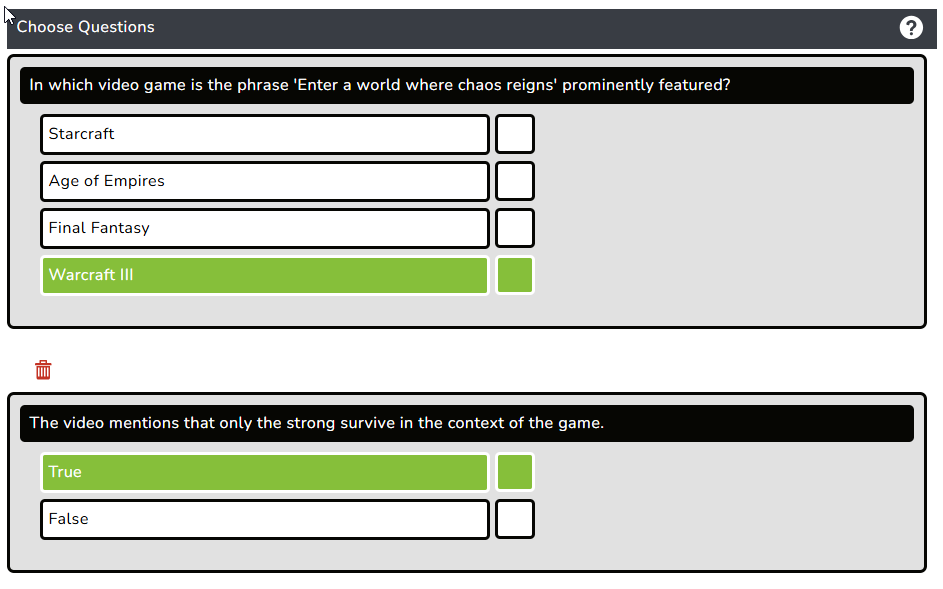
To remove or replace a question, click on the red trash can icon underneath it.
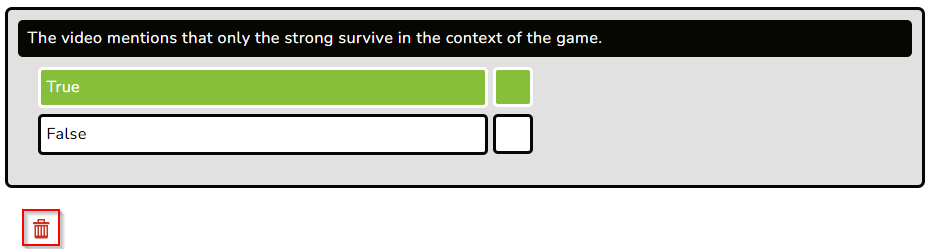
This will bring up a window asking if you would like to Replace it with a new question, delete it or cancel to go back. Clicking Delete will remove the question from the quiz. Clicking Replace will replace it with a new one.

When you are happy with the quiz questions click Next.
On the next screen a walkthrough is displayed to provide guidance through the process of creating the quiz for the video. This can be closed by clicking Skip. For first time use, follow the walkthrough for guidance on how to operate the quiz controls. Click on each highlighted area to advance through the walkthrough.
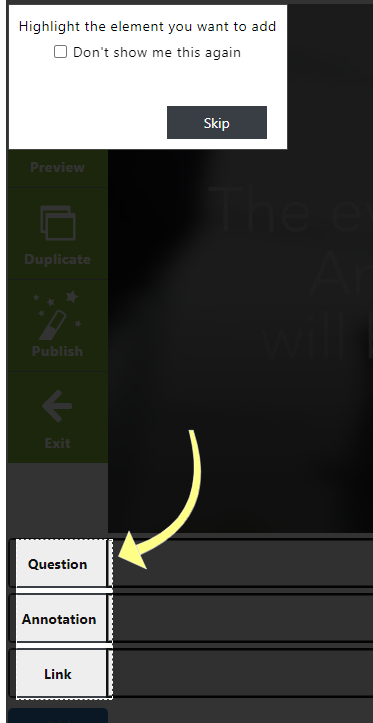
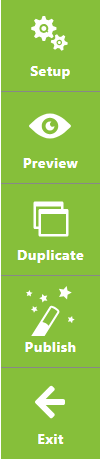
A side menu bar is displayed with the following options:
Setup - The current window
Preview - Preview how the quiz will look when a participant takes it
Duplicate - Create a duplicate of the quiz. Clicking this will ask you to provide a name for the new quiz, and take you back to the 'Edit quiz' screen where options can be set for the new, duplicate quiz
Publish - Publish the clip, making it live and accessible to participants
Exit - Exit to the main menu
There are three types of elements that can be added to a quiz: questions, annotations or links.

Question
Existing questions that have been created using AI will show on the timeline. Additional questions can be manually added if desired. Before adding a question, ensure the timeline is set correctly. Either play the video and pause it at the point you would like the question to appear, or click in the grey bars, in any empty space, below the video to move the timeline to that point. The red bar indicates the current position in the video.

To add a question click on Question and click Add.

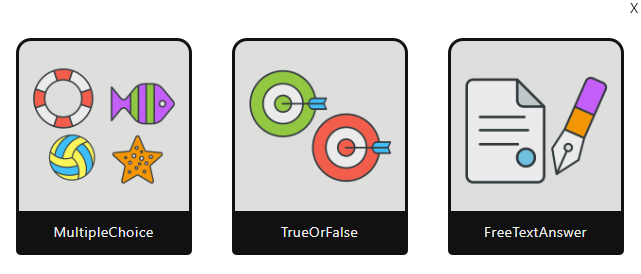
A window will appear over the video player, with three options: Multiple Choice, True or False and Free Text Answer.
Multiple Choice
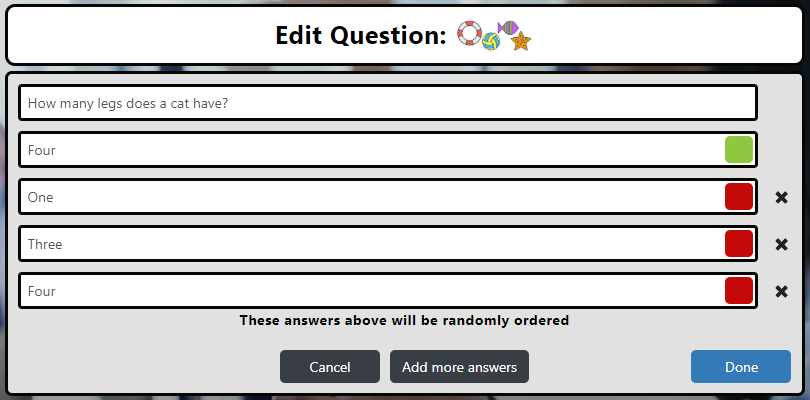
When selecting multiple choice a question can be entered, and below it, the correct answer. Three answers can be entered in for the participant to select from. Clicking Add more answers shows one more line, allowing a fourth answer to be entered for the participant to choose from. Click Cancel to cancel creating the question, or Done to add it to the video.
True of False
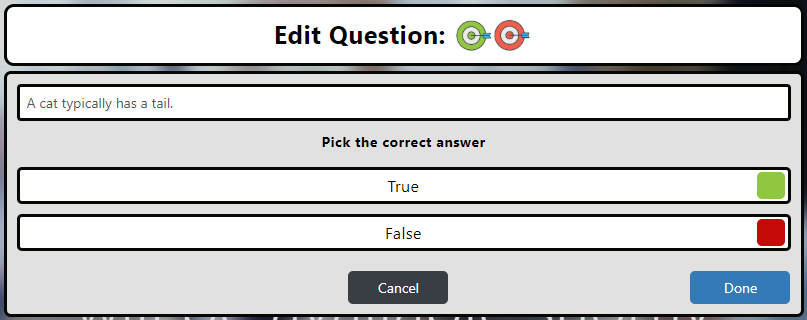
Enter in the question. Choose whether the correct answer to the question is either true or false and then click Done.
Free Text Answer
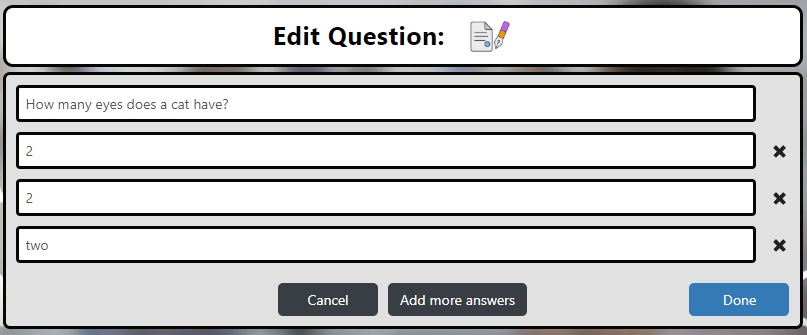
Enter in the question followed by the correct answer. Below, enter in the answers that would be accepted as correct. If more answers are required, click on Add more answers. Up to four acceptable answer variations can be added. Click Done to add the question to the video.
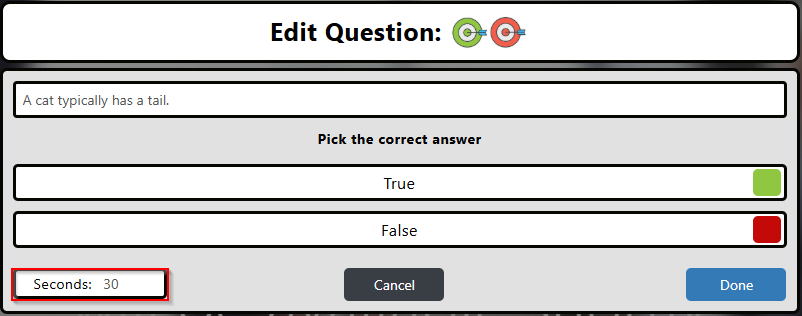
When the time limited questions option is enabled, the number of seconds a user has to submit their answer is displayed. This can be edited, and the default time is set at 30 seconds.
Annotation
Before adding an annotation, ensure the timeline is set correctly. Either play the video and pause it at the point you would like the annotation to appear, or click in the grey bars, in any empty space, below the video to move the timeline to that point. The red bar indicates the current position in the video.

To add an annotation click Annotation and then click Add.
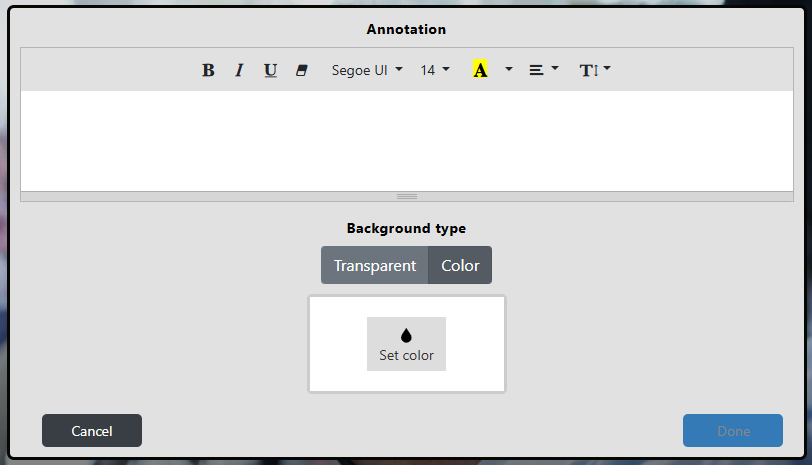
A window will appear allowing for free text to be written. This will appear over the video at the time previously selected in the timeline. Basic formatting options can be selected, and the annotation can either appear in a transparent text box on the video, or with a background colour of your choice.
Link
This allows a clickable hyperlink to be added onto a video for a user to click to access an external page. Before adding a link, ensure the timeline is set correctly. Either play the video and pause it at the point you would like the link to appear, or click in the grey bars, in any empty space, below the video to move the timeline to that point. The red bar indicates the current position in the video.

To add link click Link and then click Add.
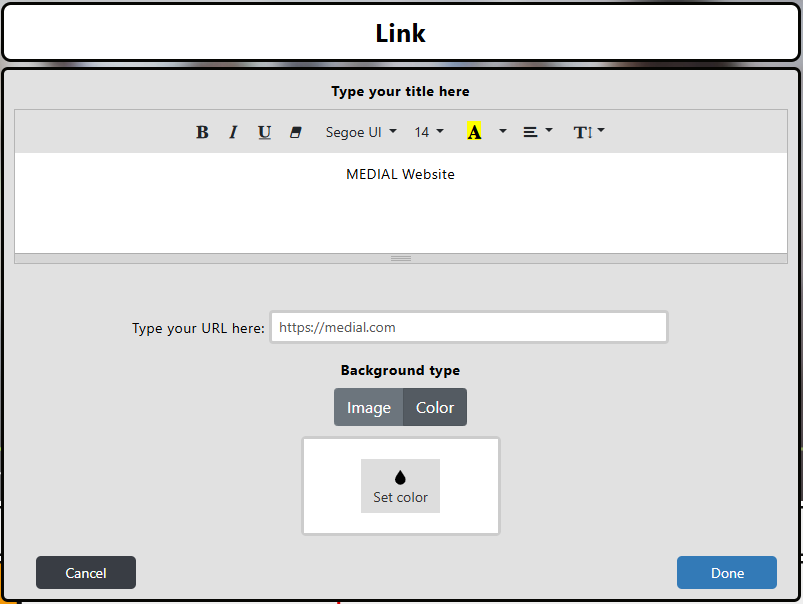
The link can be given a title and the URL for it can be entered. The title is what the user sees when it appears during playback, and is what they click on to visit the link. Basic formatting for the title can be set, and the box in which it appears can either be transparent, or a colour can be set for the background.
Click on Done to add the link.
Once the quiz is ready, click on Next. A prompt will be displayed asking whether it should be published. Click Yes to publish it immediately, making it available to users, or No to save it so that it can be published at a later date.
Updating AI Questions
To update questions for an AI generated quiz, edit the quiz from the main Quiz Overview page.

Check the Update AI Questions box and click Next.
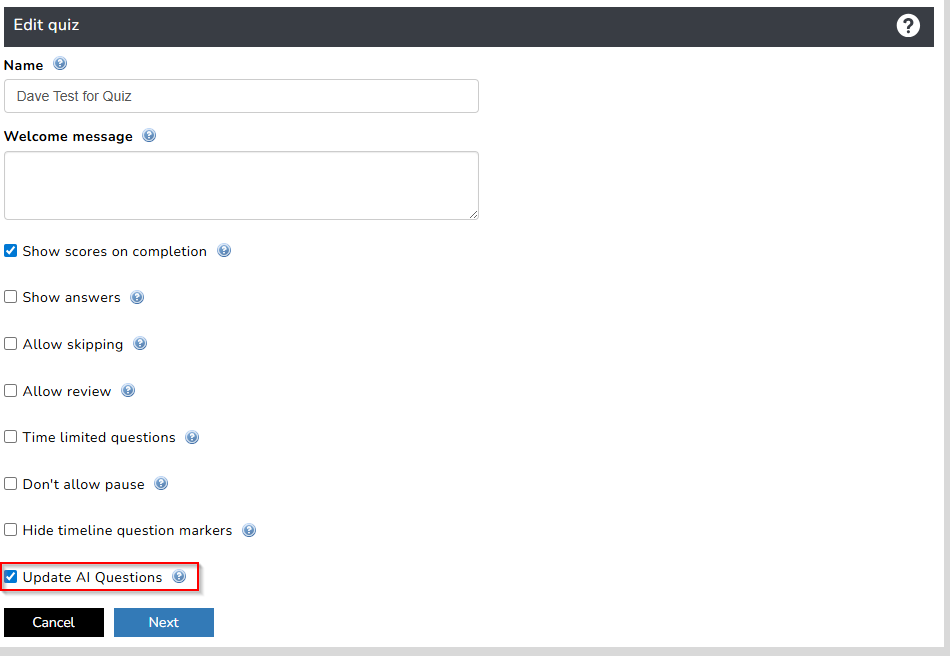
Continue through the process as described previously to edit and save the quiz.
Publishing an Unpublished Quiz
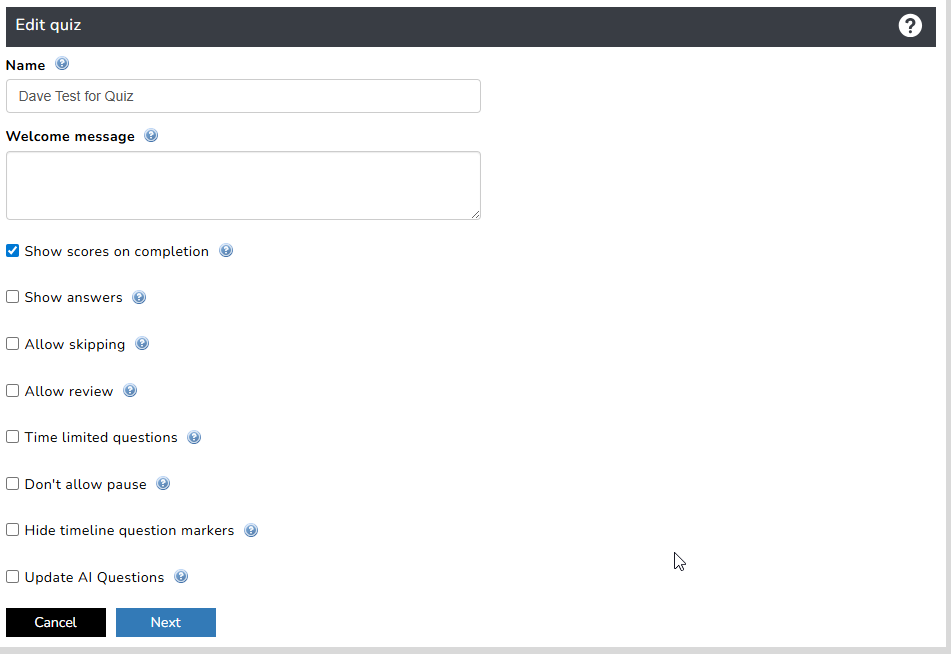
To publish an unpublished quiz, edit the quiz from the main Quiz Overview page.

On the Edit Quiz page click Next.
Click Next on the Quiz editing page.
Click on Yes.
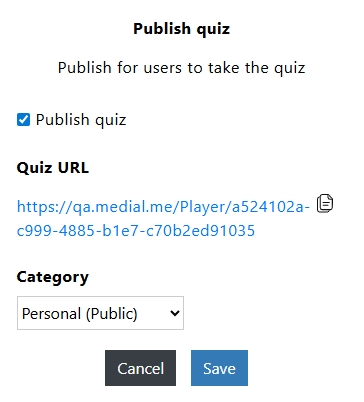
Leave the box checked to publish the quiz, and copy the link to it if required for sharing purposes. Select the desired category for the quiz, and then click Save.
Permissions
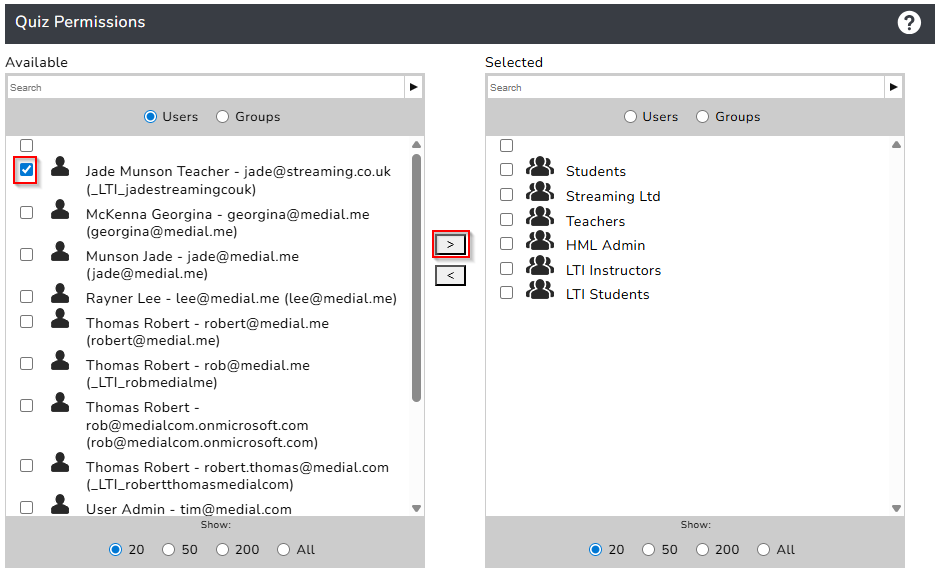
The Permissions area allows an administrator to provide permissions to users who should be able to create quizzes for videos. Use the window on the left to search for users and/or groups, check the user/group using the check box, and the click the right arrow to move them into the Selected window, giving them access to the Quizzes feature.
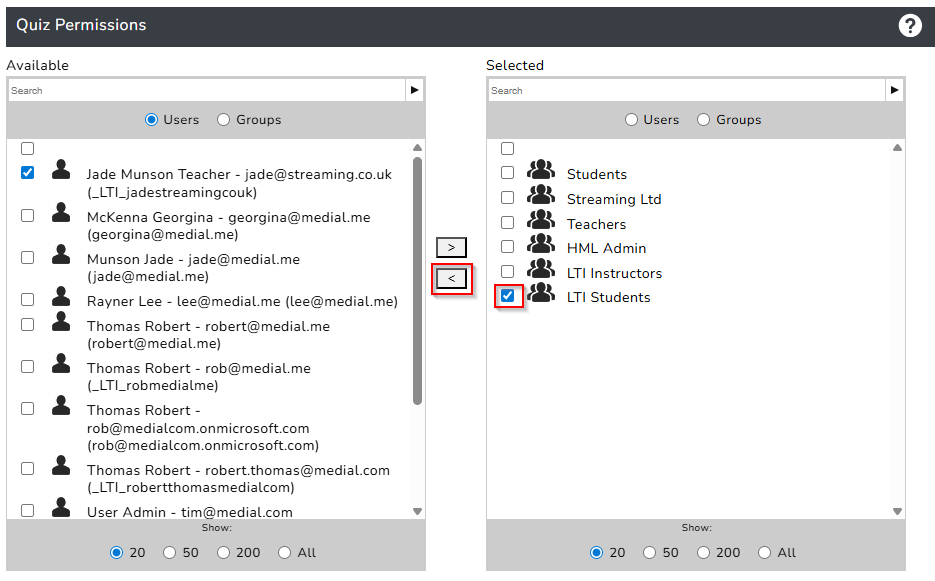
To remove a user or group, check the box next to them in the right-hand window, and click on the left arrow.
Was this helpful?
Still need help? Ask the team