Managing Media
Written By Robert Thomas
Last updated 11 months ago
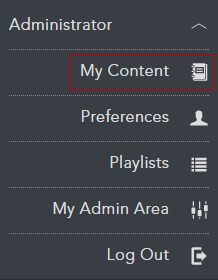
Once you have uploaded content to MEDIAL, you can manage the content by clicking the My Account button at the top of the screen after you have logged in:

Next, choose My Content:
Content List
Your content page displays information about the media you have uploaded. In the content list, you can search for content, modify settings, and delete items. In the media listing area, content is organized according to the most recent contributions. Click any of the green column headings to organize media differently.
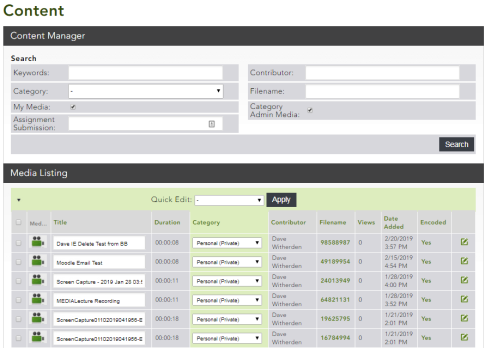
Administrators: MEDIAL administrators can use this screen to move content between users' personal categories. See Moving Items into Personal Categories.
In the search area above the media list, search for your content by specifying keywords or a file name.
Tip: To search for assignment responses submitted though a virtual learning environment, use the Assignment Response drop-down box to search for them.
Administrators: MEDIAL administrators can use the check boxes to display all content uploaded to a category.
Preview a media item by clicking the camera icon for videos:

or the music note icon for audio files:

To edit a record, click the pen icon at the right end of the row.

Editing a clip opens the file upload wizard with the details of that clip already populated. You can edit any section. You can also replace the clip by uploading a new one.
If archiving is enabled, the eight-digit file name will be a green hyperlink to the original file. Right-click the link and choose Save As to download the file.
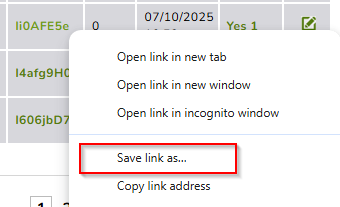
Note: If archiving is not enabled the download will still work, however it will download the highest quality encoded version of the clip.
Was this helpful?
Still need help? Ask the team